![TYP_Logo-09-1.png]](https://help.thankyoupayroll.co.nz/hs-fs/hubfs/TYP_Logo-09-1.png?height=40&name=TYP_Logo-09-1.png)
Updated: March 2026
This article will walk you through adjusting the allocated leave balance.
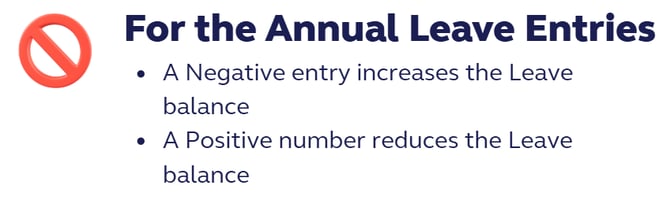
.png?width=52&height=52&name=Info%20-%20Blue%20Block%20(1).png) The example below is for over-deducted leave, for under-deducted leave, follow the same process but reverse the positive and negative inputs in the timesheet.
The example below is for over-deducted leave, for under-deducted leave, follow the same process but reverse the positive and negative inputs in the timesheet.
What to look for
If your employee works a varying hours work pattern (for example, 8 hours Mon-Thurs, but 6 hours on Fridays), we recommend the 'Same as default standard week' setting in the Leave Tab.
*If 'Set custom rate' is selected, the system treats each day as equal, which could result in this leave deduction errors.
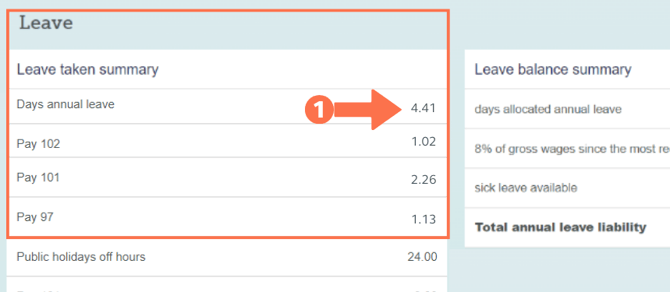
A dead giveaway of an incorrect leave setting is odd leave amounts in the leave taken summary, such as 1.02 days or 1.13 days
- Half days of leave will be 0.5 and quarter days will be 0.25, so anything else warrants investigation.
To check leave settings, go to the Employee Profile and check the following two tabs:
- The Standard Pay Tab:
- Have 'the default entries for standard pay row of the timesheet' been completed?
If not, we recommend these.
- Have 'the default entries for standard pay row of the timesheet' been completed?
- The Leave Tab
- Has 'same as default standard week' been selected (will be darker color) for a standard week? If not, this is a good setting.
- Are the number of days in a typical week correct? If not, update this now and Save this tab.
Now, let's check what leave has been deducted.
Setting up the System
Step 1: Gather the deduction data
First find out how much leave has been deducted.
- Go to Employee's Time Sheet entry and Reporting screen
- Find the total annual leave days taken.
- Note this should be the top option.
- In this example, the employee took annual leave in Pays 97, 101 & 102, with a total of 4.41 days deducted from their balance.
- Check the timesheets to see how many days were actually taken. If only a few pays you can open the timesheets in the pay numbers displayed further down your screen.
- The alternative is to do a pay slip export over the pay number range. Quick instructions can be found Here
- In our example, the employee took 1 day of leave in each of Pays 97 & 102, and two days of leave in Pay 101.
- This means an over-deduction of (4.41 - 4 days = 0.41 days) 0.41 days has been made.
Now that we have identified the adjustment required this can be done in the employees next timesheet.
Step 2: Create a Custom Pay Type
In the Employee Profile, go to the 'Pay Types' tab to create a custom pay type for this correction.
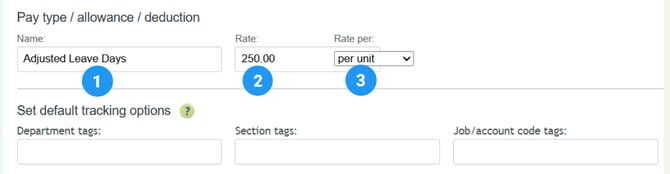
- In Normal pay types (taxed ), choose a name that will be easy to identify. This will appear on pay slips and can be used to run custom pay type reports.
- In this example we chose to call this pay type 'Adjusted Leave Days'
- Set the Rate as the employees ordinary daily rate.
- In this way you are able to add the exact number of adjusted days in the timesheet.
- Select 'per unit' from the 'Rate per' dropdown menu.
- SAVE this setting at the bottom of the tab.
Making the Correction via the Timesheet
If your employee works variable hours, pick one day and use this day value to do all calculations. Follow the example below.
- When you load a timesheet, the 'Standard Pay' row should pre-populate. Add a new row by clicking the green
 to the right of the timesheet.
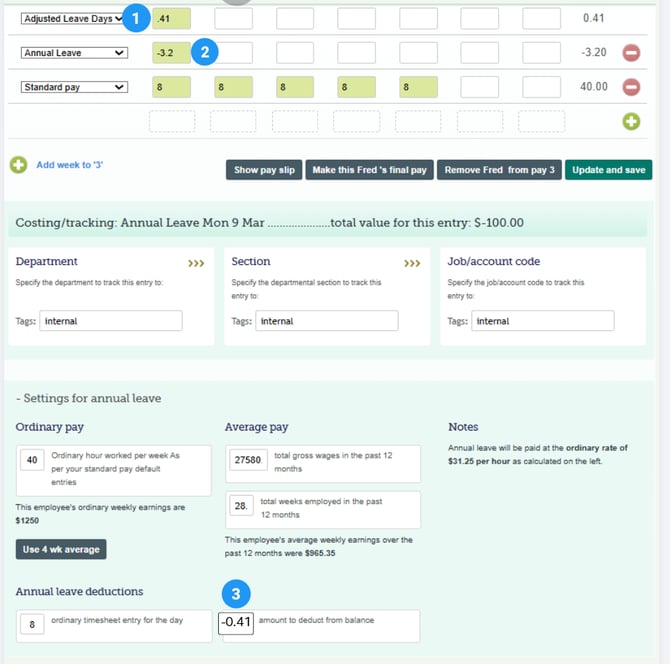
 - Select your new pay type (Adjusted Leave Days) from the dropdown menu.
- Enter the number of days being adjusted (0.41 days). Box number 1
- Add a further new row for Annual Leave entry
- To calculate the Annual Leave value to enter on the timesheet
- Use : Multiply the Value of a day by the over-deducted leave amount
eg. 8 (Monday's hours) X 0.41 = 3.2 hours - The value of the 3.2 hours and the 0.41 of a day should be equal
- Use : Multiply the Value of a day by the over-deducted leave amount
- Enter these hours as a negative number -3.2
- Update and Save the timesheet. The timesheet boxes will turn green.
- Left-click in the green timesheet entry Box number 2
- Check that the adjustment of annual leave is for the correct amount. Box number 3
Calculating the adjustment to Allocated Leave when an employees week size is changed.
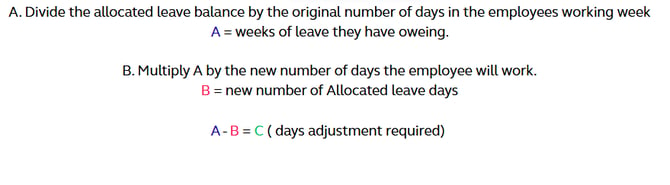
If you require assistance to calculate the change value please contact our Help Team
That is it! You have now successfully adjusted your employees leave balance.
If this correction isn't working as expected or if you feel unsure about making this correction, contact our Help Centre. We are here to help you succeed.